

Your internet connection may be fast on paper and still feel painfully slow at home. A video freezes, a work call becomes choppy or a download takes far longer than expected. Often, the problem is not the advertised speed. It is competition for the available bandwidth.
Every connected device takes a share of the connection. Some use bandwidth only when you interact with them; others continue transferring data quietly in the background. The good news is that you can usually identify the biggest users and regain control without becoming a network engineer. For travelers, JustLuxe also explains how to secure data on hotel and lounge Wi-Fi.
Start With the Most Likely Bandwidth Users
Video is usually the first place to look. Multiple 4K streams can consume a substantial share of a household connection. Cloud gaming, large game downloads and software updates can have a similar effect. Video conferences need less total data than 4K entertainment, but they are highly sensitive to interruptions.
Cloud backups are easy to overlook. A computer uploading years of photographs or a phone synchronizing video can slow other devices even when nobody appears to be downloading anything. Security cameras, smart televisions, speakers and appliances add smaller but continuous demands.
Check Every Device Connected to Your Router
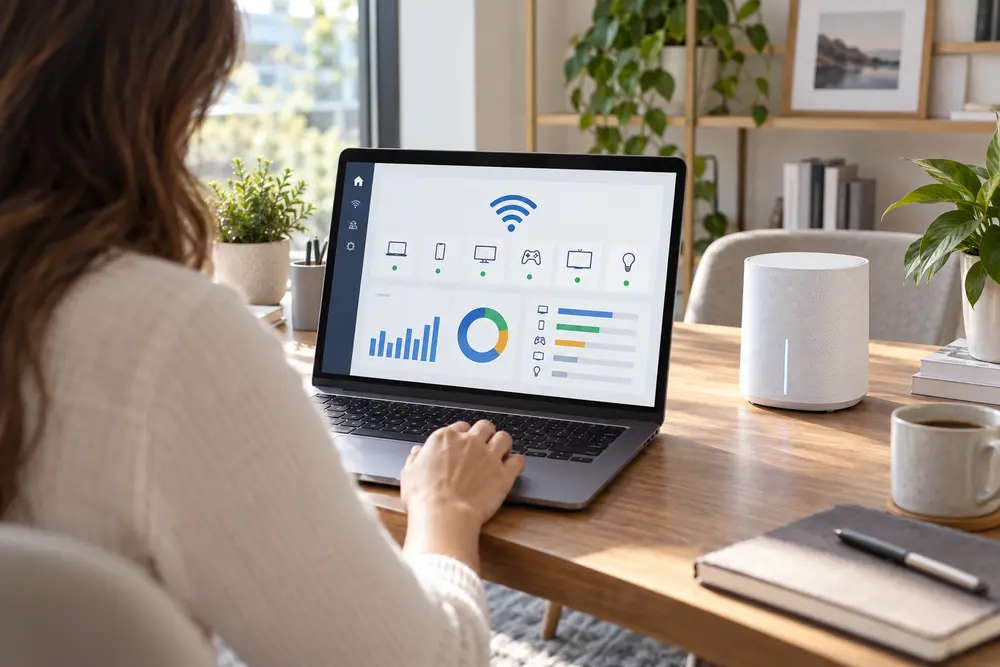
Open your router’s app or administration page and look for a connected-device list. Modern mesh systems generally make this easy. You should see phones, computers, televisions, game consoles and smart-home equipment. The FCC’s home-network recommendations provide additional guidance on router placement, frequency bands and Wi-Fi performance.
Pause or disconnect devices one at a time if the names are unclear. Label recognized devices so that future checks are faster. If you find something you do not recognize, change the Wi-Fi password, enable WPA2 or WPA3 security and reconnect only trusted equipment. JustLuxe’s review of a security-focused home Wi-Fi router shows how router-level controls can help identify and manage users.
Use Your Computer’s Built-In Monitoring Tools
On Windows, Task Manager can show which programs are actively using the network. Microsoft also explains how to monitor data consumption through Windows Network & Internet settings. On a Mac, Activity Monitor provides similar information. Sort by network activity and look for browsers, synchronization tools, game launchers or update services transferring unusually large amounts of data.
Remember that a short snapshot may miss scheduled activity. Check again when the connection feels slow, or use your router’s historical-usage feature if one is available.
Reduce Streaming and Download Demand
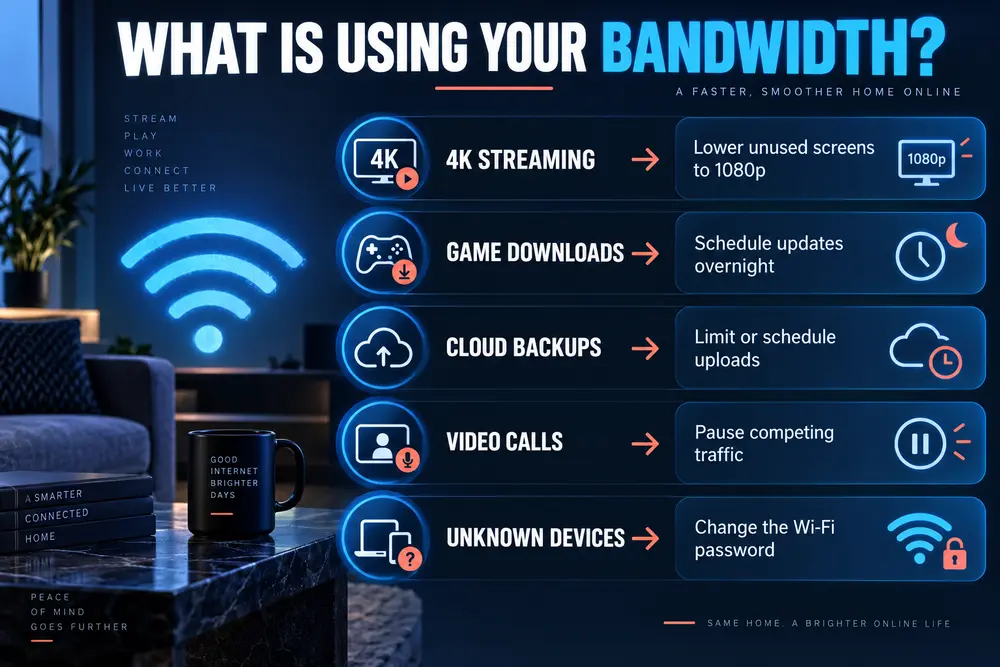
If several people stream simultaneously, change less important screens from 4K to 1080p. The difference is often difficult to notice on a smaller television or tablet, but the reduction in bandwidth can be meaningful.
Schedule large downloads and cloud backups overnight. Game consoles are frequent culprits because updates may begin automatically and involve many gigabytes. Most systems allow you to pause downloads or restrict updates to particular hours.
Stop Unnecessary Background Traffic
Review cloud-photo services, file synchronization and automatic backups. You do not have to disable them permanently. Instead, limit upload speeds or schedule them for periods when the connection is lightly used.
Close unused browser tabs that are streaming media, pause software updates during important calls and disable smart devices that are no longer serving a purpose. Small reductions across many devices can produce a noticeable improvement.
Determine Whether Wi-Fi Is the Real Problem
Bandwidth and Wi-Fi coverage are not the same issue. Run a speed test close to the router and then repeat it in the room where performance is poor. If the nearby result is strong but the distant result collapses, the internet plan may be adequate—the wireless signal is not.
Move the router into an open, central location and away from thick walls, metal objects and enclosed cabinets. A modern mesh system may help larger homes. For home offices, televisions and game consoles, a wired Ethernet connection provides the most consistent performance. Readers exploring connected-home performance can also browse JustLuxe’s luxury technology coverage.
Know When to Contact Your Provider
Connect a computer directly to the modem or primary router and test the speed. If the result remains far below the plan’s advertised range at different times of day, restart the equipment and contact the provider. Ask whether the modem supports the current plan and whether signal levels indicate a line problem.
Do not upgrade automatically. First determine whether the bottleneck is the internet service, the router, poor Wi-Fi coverage or a device consuming excessive data. Once you identify which layer is failing, the solution becomes much simpler—and often much less expensive.
Visual plan
- Infographic filename:
bandwidth-hogs-and-fixes-infographic.webp - Infographic alt text: Common internet bandwidth users and the best fix for each one
- Support image 1 filename:
home-network-bandwidth-devices.webp - Support image 1 alt text: Modern home with many devices competing for internet bandwidth
- Support image 2 filename:
router-dashboard-network-monitoring.webp - Support image 2 alt text: Homeowner checking connected devices and bandwidth usage through a router dashboard